Choose the source
Start from Video → Record screen, then use the browser-owned chooser to select a tab, window, or full screen. Microphone is optional; shared audio depends on the browser and selected source.
Login to Scribe Animator
Capture a software walkthrough in short, meaningful steps instead of wrestling with one long recording. Review the session, add the steps you want, and keep editing each result on Scribe's canvas and timeline.
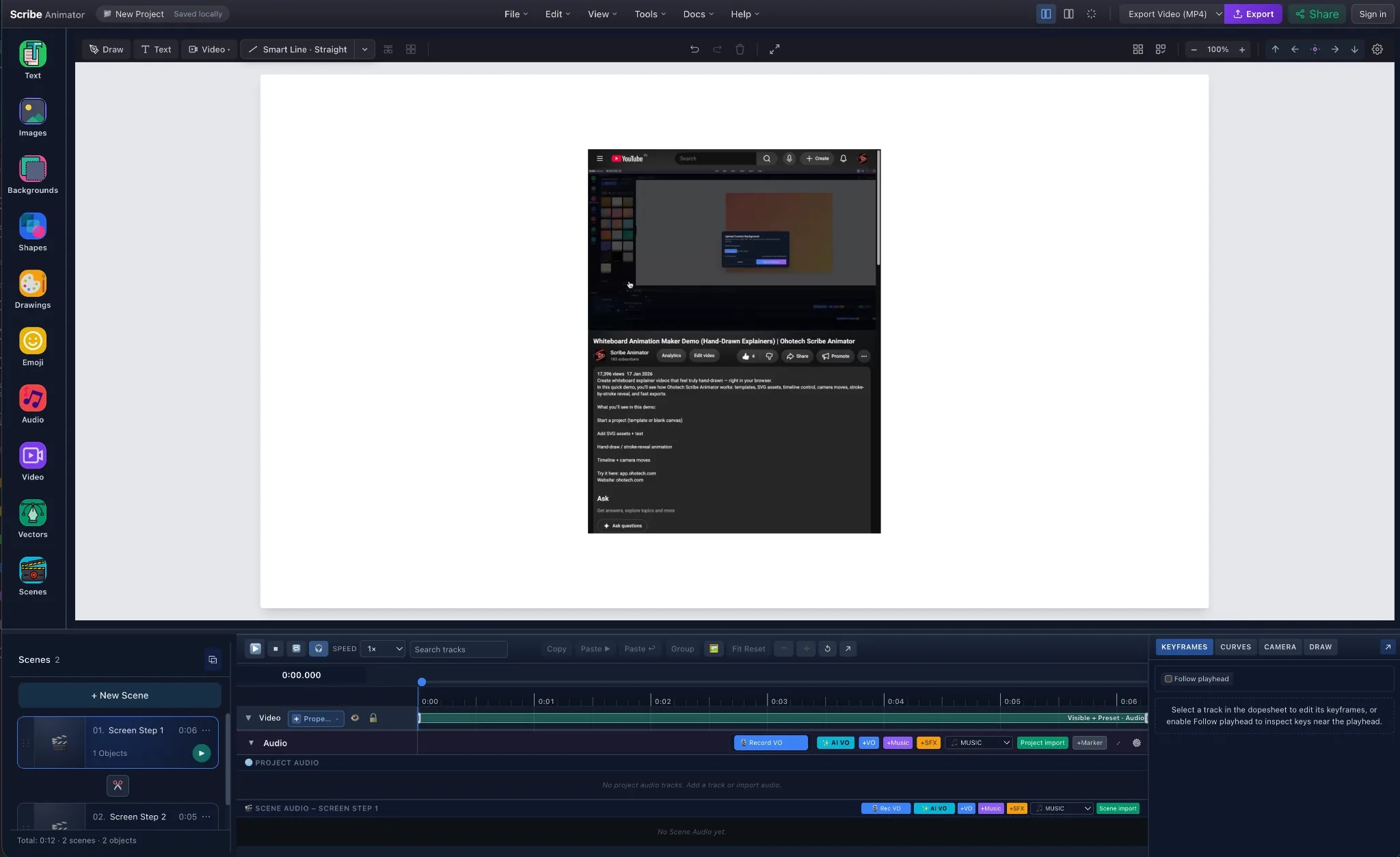
A long recording makes every correction, annotation, camera move, and narration change depend on the same clip. Scribe's step-based recorder gives each task or idea its own scene so the explanation can keep evolving.
Start from Video → Record screen, then use the browser-owned chooser to select a tab, window, or full screen. Microphone is optional; shared audio depends on the browser and selected source.
Choose New Step at a task or idea boundary. Scribe finalizes that playable segment and immediately starts the next one over the already-authorized capture stream.
Inspect the actual step list, duration, and file size. Add the session only when the captured material is ready to become project scenes.
Every accepted step creates one scene containing a normal Video-on-Canvas object—not a flattened or separate tutorial format.
Trim and split the video, annotate it, use Freeze and Explain, choreograph camera moves, add voiceover, and organize the explanation with StoryBeats.
Play the same scene timeline the audience will see, then use Scribe’s normal browser export workflow for the finished explainer.